Customize a system template
The official templates are complete, working templates: use them as they are, tune them without code, or copy one and change it.
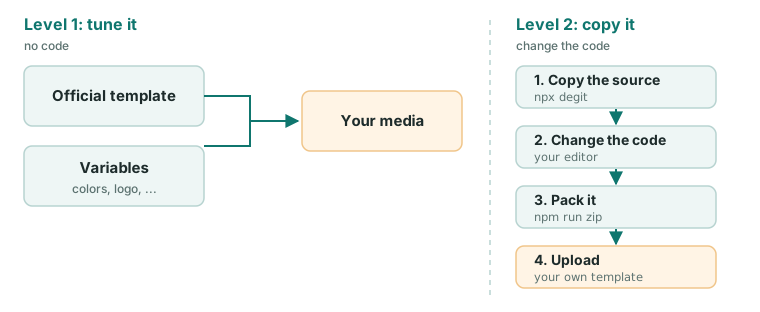
Level 1: tune it without code
Every official template exposes variables (colors, logos, backgrounds, fonts, …). In the CMS, create a media, select the template and fill in its variables. Each template’s README lists them. For example, Countdown:
| Variable | Type | What it does |
|---|---|---|
bg_image | image | Background image. It wins over the colors when set |
bg_color_1 | color | Background color (the top color, if bg_color_2 is also set) |
bg_color_2 | color | Second background color, for a gradient |
bg_font_color | color | Color of the title and the date |
All the official templates are listed in Examples.
Level 2: copy it and change the code
When a variable is not enough, copy the template and change its code. This example lets the user choose the size of the Countdown title.
1. Copy it
npx degit dsplay/dsplay-templates/templates/countdown my-countdown
cd my-countdown
npm install
npm start
You need Node.js 22.22.2+, 24.15.0+ or 26+. Open the address npm start prints (http://localhost:3000). The monorepo instructions in the template’s README don’t apply to your copy: run everything from its folder.
2. Find what to change
src/contexts/count-down-context/index.jsxreads the variables withuseTemplateVal('bg_font_color', '')and similar calls.src/components/count-down/index.jsxrenders the title.
3. Add a variable
In src/components/count-down/index.jsx:
+import { useTemplateVal } from '@dsplay/react-template-utils';
 ...
+  const titleSize = useTemplateVal('title_size', '');
 ...
-        <h1 style={{ color: colorFont }}>{title}</h1>
+        <h1 style={{ color: colorFont, fontSize: titleSize || undefined }}>{title}</h1>
4. Mock it
In public/dsplay-data.js, which only exists for local development:
var dsplay_template = {
  bg_color_1: '#0a1128',
  bg_color_2: '#000000',
  bg_font_color: '#ffffff',
  title_size: '8vh', // new: the font size of the title
};
Reload the page: the title is bigger.
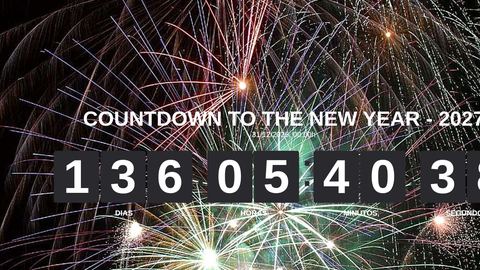
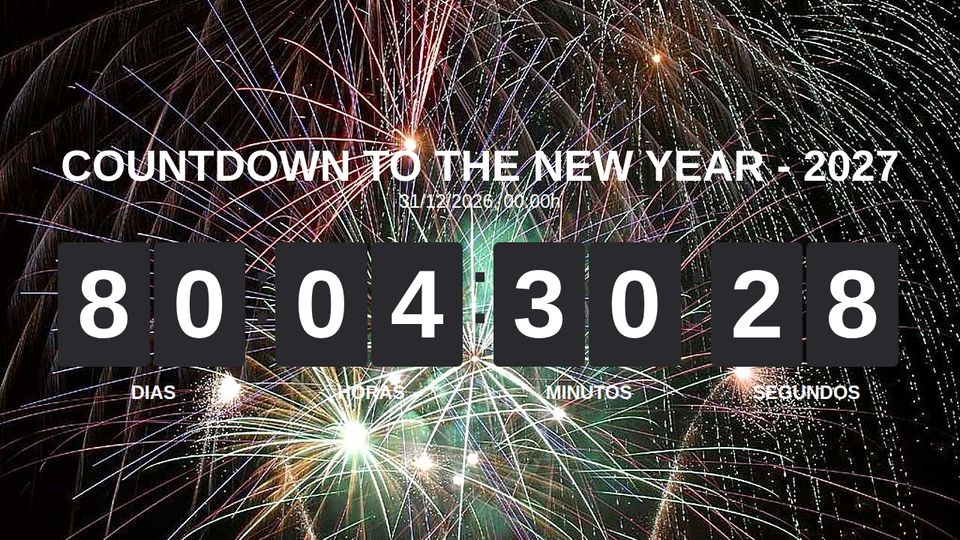
title_size set to 8vh.5. Pack it
npm run zip
It runs the linter, builds the template and creates template.zip. The manifest inside now lists title_size next to the original variables.
6. Upload it as your own template
In the Web Manager, create a template with the Countdown media type, a name of your own (for example “Countdown, big title”) and the template.zip. Then create a Countdown media and select it.
Start from a template of the same media type as the one you want: it receives the data you need. See
dsplay_media.