Create a template from scratch
A template is a static web page, so you can build it with React, jQuery, vanilla JavaScript or anything that outputs HTML and JavaScript. This guide builds a welcome card whose message and colors the user changes from the CMS, in a few lines of JavaScript.
Pick your starting point
| You use | Start from |
|---|---|
| Vanilla JavaScript | JavaScript boilerplate |
| jQuery | jQuery boilerplate |
| React | React boilerplate, with the hooks and components of @dsplay/react-template-utils |
| Anything else (Vue, Svelte, a static site generator, plain files) | Your own project: see Any other stack |
You need Node.js 22.22.2+, 24.15.0+ or 26+.
Example: a welcome card
This example uses the JavaScript boilerplate.
1. Copy the boilerplate
npx degit dsplay/dsplay-templates/boilerplates/javascript my-template
cd my-template
npm install
npm installfails withETARGET ... with a date before ...? The boilerplate’s.npmrconly accepts package versions published at least 3 days ago, and a fresh@dsplay/*release can still be inside that window. Wait, or install once withnpm install --min-release-age=0.
2. Run it
npm start
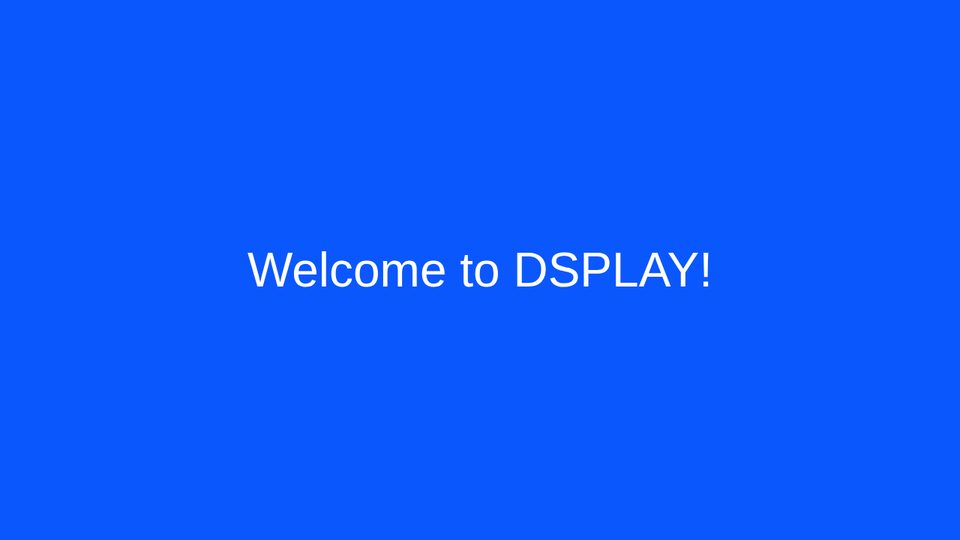
Open http://localhost:3000 (the root URL, not /index.html, so live reload works). The page reloads when you save a file.
3. Write the template
In index.html, replace the content of <div id="root">:
<div id="root">
  <div class="message"></div>
</div>
styles/main.css:
html, body, #root {
  height: 100%;
  width: 100%;
  margin: 0;
}

#root {
  opacity: 0;
  display: flex;
  justify-content: center;
  align-items: center;
  text-align: center;
  font-family: sans-serif;
}
scripts/app.js:
"use strict";

(function () {
  var u = dsplayTemplateUtils;
  var root = document.querySelector('#root');

  document.querySelector('.message').textContent = u.tval('message', 'Welcome!');
  root.style.fontSize = u.tval('font_size', '3em');
  root.style.color = u.tval('text_color', '#ffffff');
  root.style.backgroundColor = u.tval('background_color', '#0a57fe');

  root.style.opacity = 1;
})();
tval(name, default) reads a template variable as a string. tbval, tival and tfval read booleans, integers and floats.
4. Mock the data
scripts/dsplay-data.js only exists for local development: in production the player provides the real data. Replace dsplay_template in it:
var dsplay_template = {
  message: 'Welcome to DSPLAY!', // the text on the card
  background_color: '#0a57fe', // the card color
  text_color: '#ffffff', // the text color
  font_size: '4em', // the text size
};
Change a value, save, and the page updates.
5. Pack it
npm run zip
This creates template.zip (with index.html at its root) and a manifest listing the variables found in your code:
{
  "variables": [
    { "key": "message", "type": "string", "default": "Welcome!" },
    { "key": "font_size", "type": "string", "default": "3em" },
    { "key": "text_color", "type": "string", "default": "#ffffff", "subtypeGuess": "color" },
    { "key": "background_color", "type": "string", "default": "#0a57fe", "subtypeGuess": "color" }
  ]
}
6. Upload and use it
- In the Web Manager, create a template: choose the Message media type, give it a name and select
template.zip. The CMS reads the variables from the manifest. See Deploying. - Create a Message media, select your template and fill in the variables: the message, the colors and the size.
- Add the media to a playlist.
Any other stack
A template only needs a folder with an index.html at its root, referencing its files with relative paths (in Vite, base: './').
- Install the SDK:
npm i @dsplay/template-utils, or load it with<script src="https://unpkg.com/@dsplay/template-utils"></script>(it exposesdsplayTemplateUtils). React has@dsplay/react-template-utils. -
Read the data in your code:
import { media, config, template, tval } from '@dsplay/template-utils'; - For local development, include a
dsplay-data.jswith mock data, as the boilerplates do. See Local development. -
Zip the build output with
index.htmlat the root of the zip:cd dist && zip -r ../template.zip . - Register the variables by hand in the creation form (Template Vars), or generate the manifest with
@dsplay/template-manifest.
Next steps
dsplay_media: the data each media type gives to your template.- Template variables and SDKs.
- JSON Services: feed your template with your own data.